
myDayScribe Open myDayScribe

Plan your week

A picture guide to adding this week's tasks, sub-tasks, events and habits (Plus plan and above).

This guide uses Tasks, the Calendar and Habits, which are included from the Plus plan and in the 14-day Pro trial.

▶ Video coming soonThe steps below show the same thing in pictures.

1. Add the week's tasks

Open Tasks and press + Task. Give it a title, set Horizon to Week (7) or pick a Due date, tick Show on calendar, and press Save. Repeat for each task.
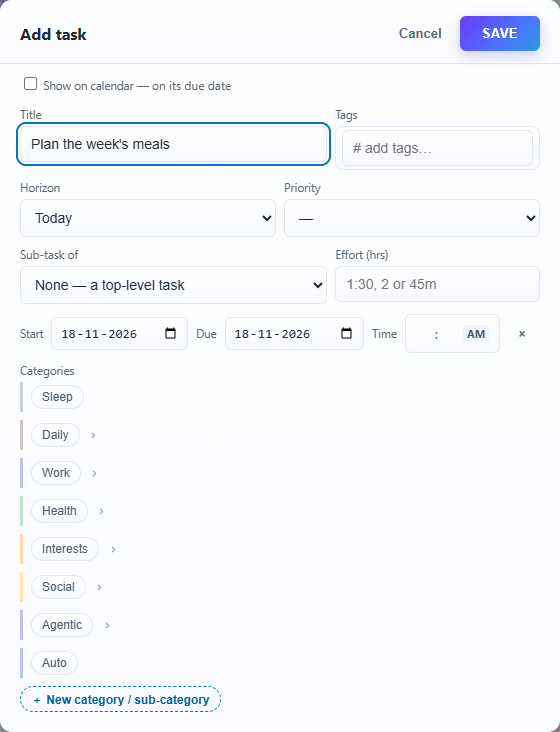
The Add task window with a title typed, the Horizon, Priority and Sub-task of boxes, start and due dates, and Show on calendar at the top

2. Break a big task into sub-tasks

Press the small + on a task's row to add a sub-task under it. Give each sub-task an Effort (hrs); their effort adds up on the parent.
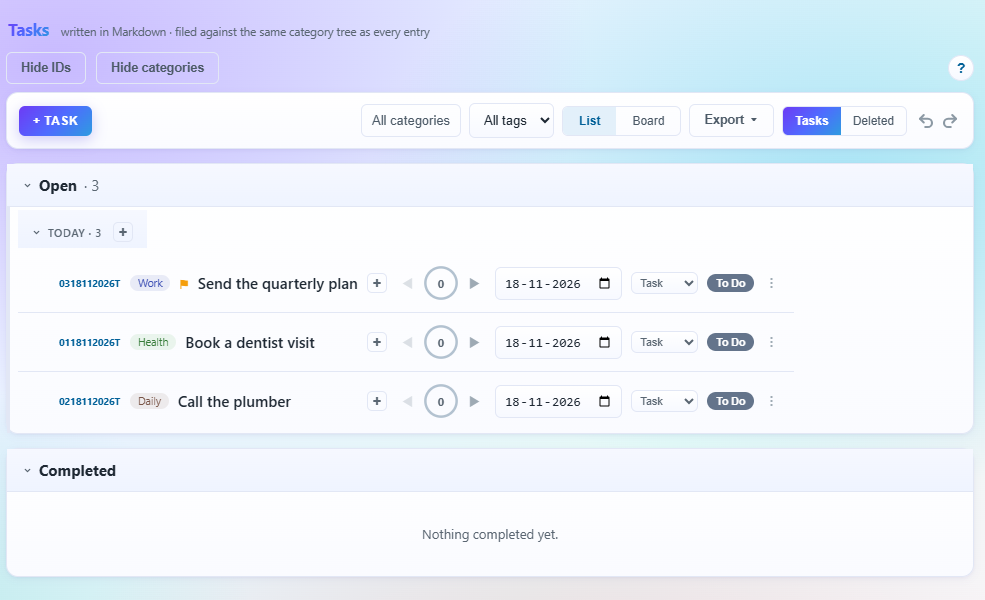
The task list in List view, with three open tasks due today; the small + on each row adds a sub-task under it

3. Put fixed events on the calendar

Open Calendar, switch to Week, and tap an hour to add an event, such as a weekly team call. Set Repeat to Weekly so it appears every week.
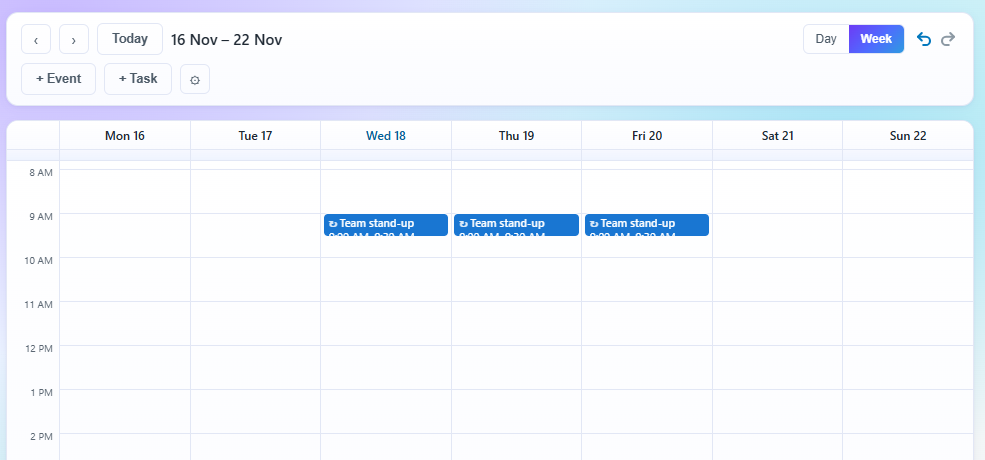
The Calendar's week view with a repeating Team stand-up event at 9:00 AM on each weekday from today

4. Add a habit

Open Habits and press + Habit. Name it, choose Good, set the target to 3 and the period to Weekly.

The Habits page with a new row for "Exercise", type Good, target 3, period Weekly

5. Check the board

Back in Tasks, press Board to see your tasks in To Do, In Progress and Complete columns. Tap a task's status on the list to move it along.
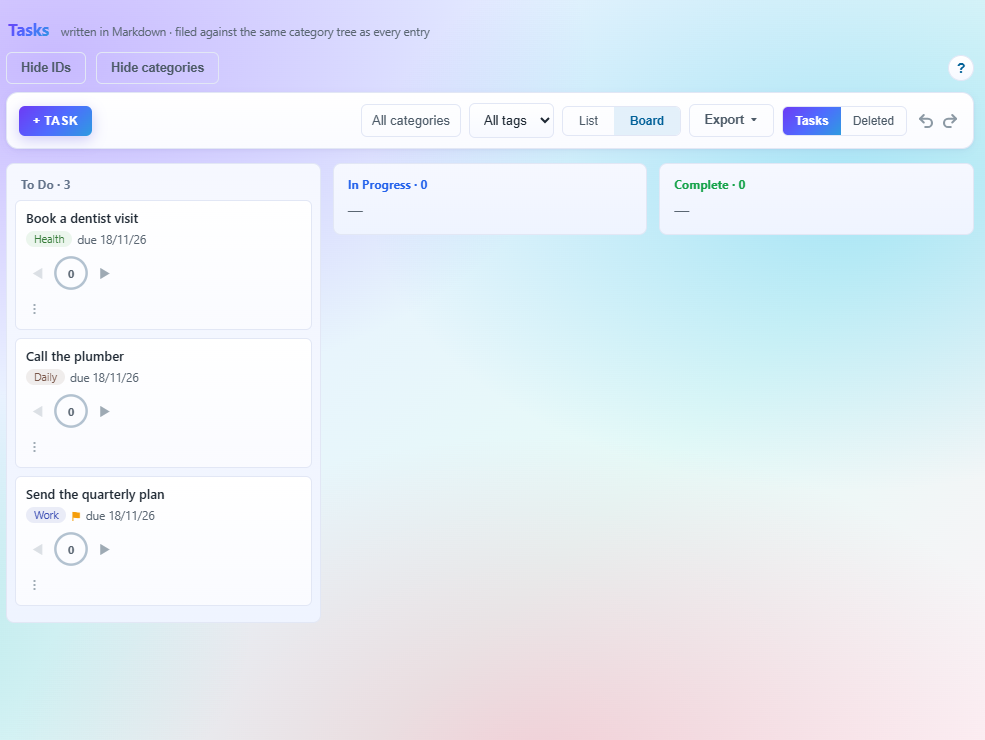
The Tasks board view with tasks spread across the To Do, In Progress and Complete columns

At the end of each day, press Close the day on the Time Logger to move unfinished tasks to tomorrow. Then see how the week went in Read your week.

Was this article helpful?